This page contains affiliate links. If you make a purchase through one, we may earn a commission at no extra cost to you.
The honest answer is that this isn’t really an either/or choice — but if you’re setting up a backup for the first time and have to start somewhere, here’s how the two options actually compare, and why our ransomware protection guide recommends using both together rather than picking one. See AOMEI Backupper’s current plans
What an External Hard Drive Gets You
A local backup to an external drive is fast — both backing up and restoring are limited only by your drive’s connection speed, not your internet upload or download speed, which matters a lot when you’re trying to restore a large amount of data quickly. There’s no ongoing subscription cost after you buy the drive, and your data never leaves your possession, which some people simply prefer. The real weakness is that it’s vulnerable to anything that affects your physical location — theft, fire, flooding — and if the drive stays connected to your computer all the time, it offers no real protection against ransomware, since malware that encrypts your PC’s files can often reach a permanently connected external drive too.
What Cloud Backup Gets You
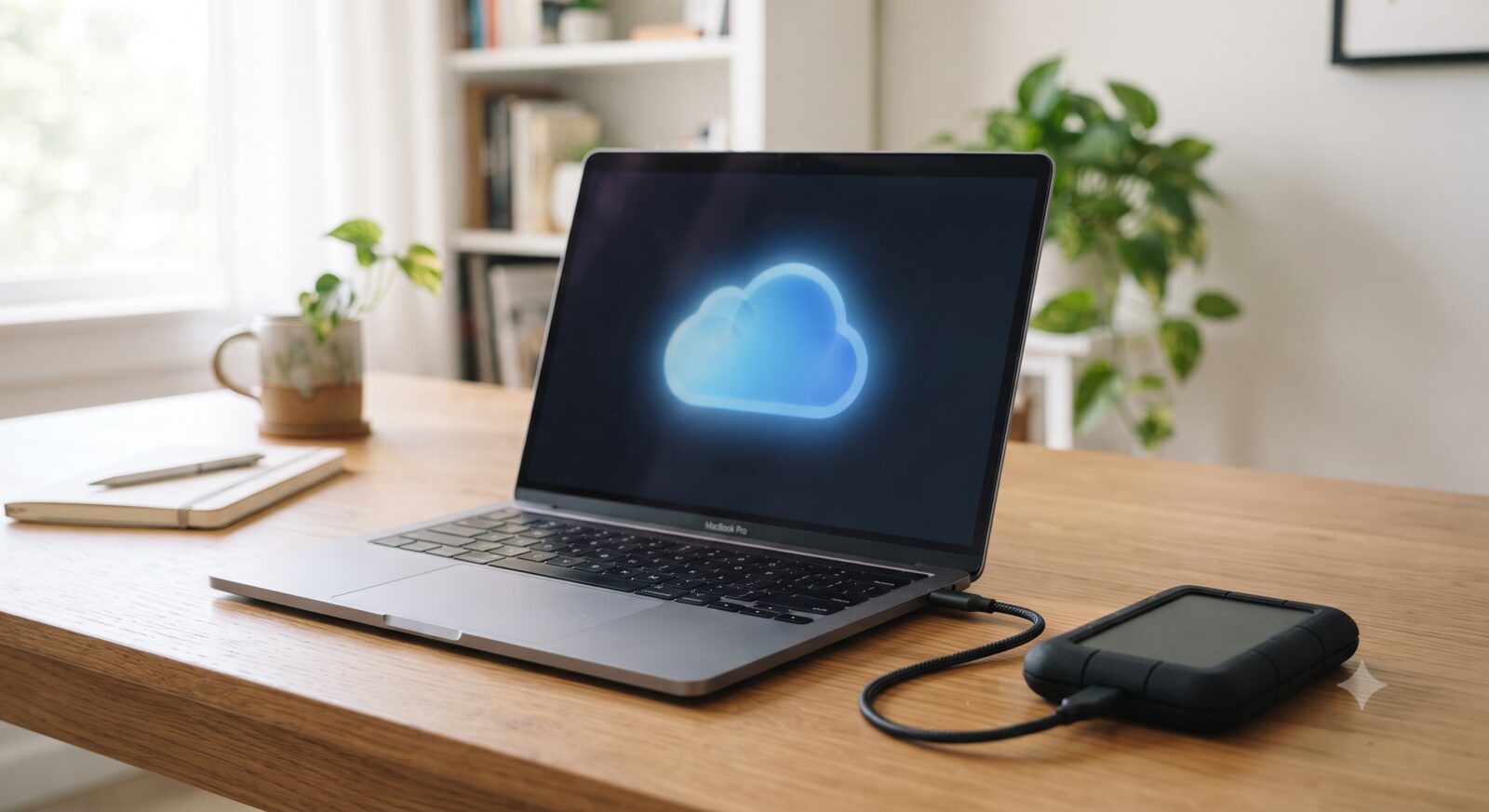
Cloud backup’s core advantage is that it’s offsite by definition — a fire, theft, or flood at your location doesn’t touch it, and ransomware sitting on your PC generally can’t reach it the way it can reach a permanently connected local drive. The tradeoffs are real too: restoring a large amount of data depends on your internet connection speed and can take considerably longer than restoring from a local drive, and it’s an ongoing subscription cost rather than a one-time purchase. AOMEI Backupper supports backing up to its own AOMEI Cloud service directly, in addition to local drives, NAS, and network shares, so you’re not locked into picking only one destination.
The Actual Answer: the 3-2-1 Rule
The standard, widely used backup guideline is 3-2-1: keep 3 copies of your data, on 2 different types of storage media, with 1 copy stored offsite. In practice, that usually means your working files, a local backup on an external drive or NAS, and a cloud backup — each covering the specific failure mode the others miss. A local drive alone doesn’t protect against fire or theft at your location. Cloud alone means a slower restore and an ongoing cost with no local copy for quick recovery. Together, they cover each other’s actual weaknesses rather than just adding redundancy for its own sake.
A Reasonable Starting Point
If you’re setting this up for the first time and can only do one thing today, start with a local backup to an external drive — it’s the fastest to set up and gets you protected against the most common failure (a drive or PC simply dying) immediately. Add a cloud backup as the second layer once the local one is running, specifically to cover the disaster scenarios a local-only backup can’t. AOMEI Backupper handles both destinations from the same tool, so you’re not managing two separate pieces of software for the two halves of this. If a backup ever does fail partway through, see our guide on fixing a failed AOMEI Backupper backup for the common causes.
Is cloud backup safer than an external hard drive?
They protect against different risks. Cloud backup is safer against local disasters like fire or theft since it’s offsite. An external drive is faster to restore from and has no ongoing cost, but offers no protection if something happens to your physical location.
Does an external hard drive protect against ransomware?
Only partially, and only if it’s not permanently connected. A drive that stays plugged into an infected PC can often be encrypted along with everything else. Disconnecting it between backups, or pairing it with an offsite cloud copy, closes that gap.
Can AOMEI Backupper handle both local and cloud backups?
Yes — AOMEI Backupper supports backing up to local drives, NAS, network shares, and its own AOMEI Cloud service, so both halves of a 3-2-1 backup strategy can run from the same tool.