Candles are one of the most reliably safe gifts available at almost any price point — they’re consumable rather than something the recipient has to find space for permanently, they work for nearly any occasion, and unlike clothing or most home goods, there’s no sizing or fit to get wrong. That said, “just buy a candle” isn’t quite specific enough advice, since candles as a gift category vary enormously in what actually makes one feel thoughtful versus generic. A few concrete things separate a candle someone genuinely appreciates from one that ends up regifted.
Why Candles Work So Well as Gifts
A candle sits in a specific gift-giving sweet spot: substantial enough to feel like a real gift rather than an afterthought, but not so expensive or personal that it carries the pressure of a major purchase. It’s also genuinely usable almost immediately, with none of the setup, assembly, or learning curve that comes with a lot of home-goods gifts. And because it’s consumable, there’s a built-in low-stakes quality to it that a permanent object doesn’t have — if the scent isn’t a perfect match for the recipient’s taste, it burns down and is gone in a couple of months rather than sitting as a visible, ongoing reminder of a gift that missed.
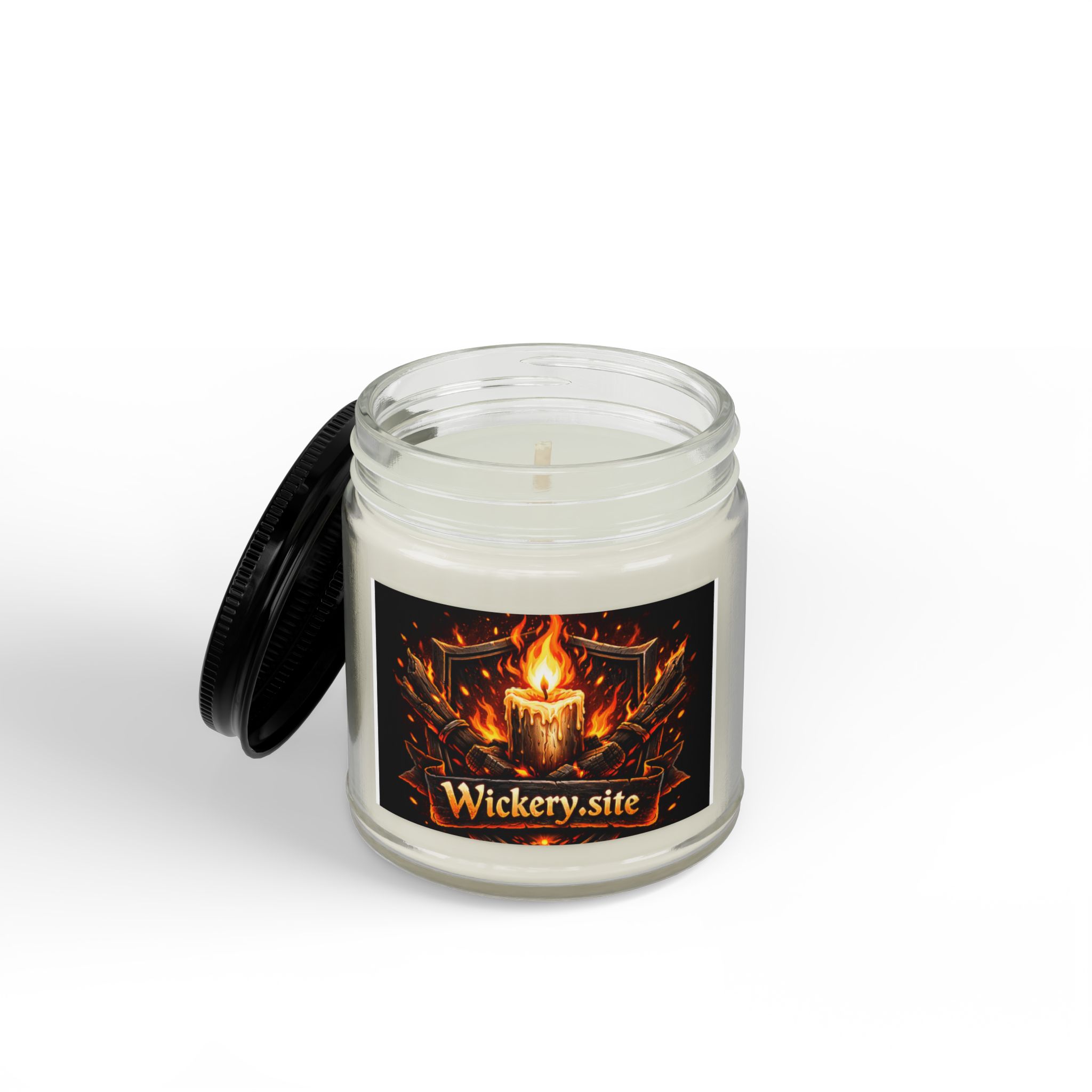
Packaging Matters More for a Gift Than for Personal Use
The exact same candle feels different as a gift depending entirely on how it arrives. A candle in its retail plastic wrap, with no box, reads as an afterthought no matter how good the candle actually is. A candle that arrives in a proper gift box — something that looks intentional straight out of the shipping package, without needing to be re-wrapped — carries a lot more weight for very little added cost. Hearthlight ships gift-boxed by default, specifically because this detail matters disproportionately for how a candle actually lands as a gift versus a purchase for yourself.
Choosing a Safe Scent When You Don’t Know Their Preferences Well
For a recipient whose scent preferences you’re not confident about, vanilla is consistently the safer default — broadly liked, rarely disliked outright, and familiar enough that it doesn’t require the recipient to have any particular taste for a niche fragrance category. See the full vanilla scent guide for more on why it performs this way across such a wide range of people. A warm spice blend is the reasonable second choice for the same broad-appeal reasons, particularly heading into fall and winter gifting occasions. Save more distinctive, polarizing scents — strong florals, unusual herbal blends — for someone whose specific taste you actually know well.
Matching Size to the Occasion
A smaller candle — in the 4oz range — works well as part of a larger gift, a stocking stuffer, or a lower-stakes thank-you where a single, larger item might feel disproportionate to the occasion. A larger jar, in the 11 to 13.75oz range, makes more sense as a standalone gift for a bigger occasion — a housewarming, a birthday, a holiday gift for someone you’re close to — where it needs to feel substantial on its own rather than as an accent to something else.
Wax Type Is Worth Mentioning on the Gift, Even Briefly
A surprising number of people who receive candles as gifts don’t know or think about what wax they’re made from, but for anyone who does pay attention to it — and it’s a growing group — a soy candle reads as a more considered gift than a generic paraffin one, given the cleaner burn and longer burn time. Mentioning it isn’t necessary, but it’s a detail that can matter more than expected for a recipient who’s specifically candle-conscious, the kind of person who already has opinions about tunneling and scent throw before you ever explain it to them.
Occasions Where a Candle Genuinely Fits
Housewarmings are the most natural fit — a new home is, almost by definition, missing the kind of small, atmosphere-setting objects a candle provides, and it’s one of the few gifts that’s genuinely useful on day one in a new space. Thank-you gifts work well for the same low-stakes, consumable reasons discussed above. Holiday gifting leans naturally toward warmer, spiced scents specifically, given the seasonal association discussed in the fall scent guide. Self-care-adjacent occasions — a difficult week, a new job, a breakup, any moment where “take some time to slow down” is the actual message — pair especially well with a candle framed explicitly around rest or ritual rather than around scent alone. Casual, low-familiarity relationships — a coworker, a neighbor, a distant relative — are worth calling out separately too, since these are exactly the situations where a distinctive or personal-feeling scent is the wrong instinct; the broader and more inoffensive the choice, the better it tends to land when the relationship doesn’t yet support a more specific, personal read on someone’s taste.
Including Care Instructions Elevates a Candle Gift
A small, easily overlooked detail: many people who receive a nice candle as a gift don’t know to give it a long first burn, and end up with a tunneled jar within a few uses through no fault of their own — just a lack of information most candle packaging doesn’t spell out clearly. Including a small note, or simply mentioning the “let it burn a few hours the first time” rule when giving it, meaningfully extends how well the gift actually performs for the recipient over its full life, not just how good it looks unwrapped.
A Single Candle vs. a Multi-Candle Set
Multi-candle gift sets have real appeal — they let the recipient sample a few scents rather than committing to one — but they also mean each individual candle in the set tends to be smaller than a standalone jar at the same total price, which can feel like less of a gift even when the total value is comparable. For a recipient with unknown scent preferences, a set offering some choice can be the safer play. For someone whose taste you’re more confident about, one well-chosen, larger candle usually reads as more considered than three or four small ones, since it signals a specific decision rather than a hedge across several options.
The Reusable Jar Adds Value Beyond the Wax
A candle in a genuinely reusable glass jar — one that looks intentional as an object on its own, not just as a wax container — gives a gift a second life beyond the burn itself, which is worth mentioning to a recipient who might otherwise toss the jar once it’s empty. Hearthlight’s jars are designed with this in mind specifically, positioned as a small vessel or shelf piece once the candle’s done rather than disposable packaging. For a gift, this detail extends the perceived value well past the roughly 70-80 hours the candle itself actually burns.
Budget Doesn’t Have to Mean Compromising on Quality
A well-made 4oz candle at a modest price point is a genuinely better gift than a larger, cheaply-made candle at the same or even a higher price — a smaller jar of a well-formulated, properly cured soy candle will outperform a bigger jar of a poorly balanced fragrance oil in cheap wax on nearly every dimension that matters to the person actually burning it: how it smells, how evenly it burns, how long it lasts per dollar. Size is the easiest thing to notice while shopping, but it’s not actually the thing that determines whether a candle gift lands well. If budget genuinely constrains the choice, prioritizing formulation and packaging over ounce count is the better tradeoff nearly every time.
Frequently Asked Questions
What’s the safest candle scent to give as a gift?
Vanilla, followed by a warm spice blend for cooler-weather occasions. Both are broadly liked and rarely anyone’s least favorite scent, which matters most when you don’t know the recipient’s specific fragrance preferences well.
Does packaging really matter that much for a candle gift?
Yes — the same candle feels noticeably different arriving in a proper gift box versus plain retail wrap. It’s one of the lowest-cost details that has an outsized effect on how a candle actually lands as a gift.
Should I tell the recipient how to burn the candle correctly?
It’s worth a quick mention. Many people don’t know to give a candle a long first burn, and end up with a tunneled jar within a few uses through no fault of their own. A short note about it meaningfully extends how well the gift performs.
Buying it as part of a wind-down evening gift? See building an evening ritual with candles. Back to the full guide.